Gespeicherte Workflows können exportiert werden, um sie entweder als Datei zu sichern bzw. in einer anderen Installation einzuspielen.
Der Export wird dann in einem solchen Format gespeichert:
<?xml version="1.0" encoding="UTF-8"?>
<workflow name="SendInBlueRegistrierung" trigger="CustomerNew" start="#2">
   <step id="#2" name="1" action="Centauri.Shop.Workflows.Process.Get">
      <data>
         <parameter>name,link,title,appellation,firstname,surenme,company,company_department,company_memo,street,zip,city,country,sup_company,sup_company_department,sup_company_memo,sup_street,sup_zip,sup_city,sup_country,tel,email,vatid</parameter>
         <xpath>customer/surname,emailconfirm/link,customer/title,customer/appellation,customer/firstname,customer/surenme,customer/company,customer/company_department,customer/company_memo,customer/street,customer/zip,customer/city,customer/country,customer/sup_company,customer/sup_company_department,customer/sup_company_memo,customer/sup_street,customer/sup_zip,customer/sup_city,customer/sup_country,customer/tel,customer/email,customer/vatid</xpath>
      </data>
      <transition destination="#3" success="yes" />
   </step>
   <step id="#3" name="2" action="Centauri.Shop.Workflows.SendInBlue.Send" final="yes">
      <data>
         <parameter>subject,link,title,appellation,firstname,surenme,company,company_department,company_memo,street,zip,city,country,sup_company,sup_company_department,sup_company_memo,sup_street,sup_zip,sup_city,sup_country,tel,email,vatid</parameter>
         <subject>Registrierung</subject>
         <template>0</template>
      </data>
   </step>
   <mapping origin="*" />
</workflow>
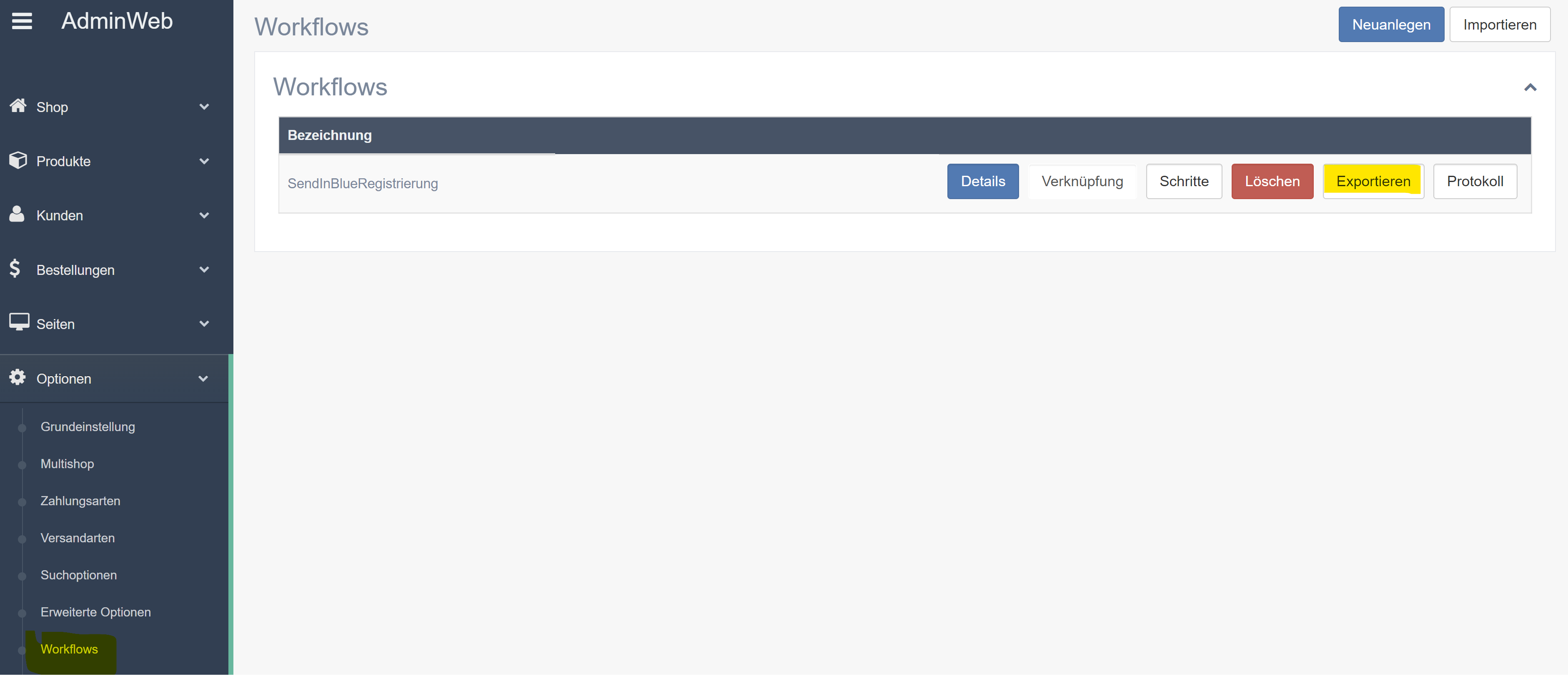
Um einen Workflow zu exportieren:
-
Wählen Sie im Menü der Administration den Punkt Optionen / Workflows
-
Klicken Sie bei dem Workflow, den Sie exportieren möchten, auf den Exportieren Button
Der Workflow wird als .xml Datei heruntergeladen.